If you are new to the Chaos Engineering term, follow How to use Chaos Engineering to verify your Monitoring Systems Efficiency blog which discussed What is Chaos Engineering ?, What is the need for Chaos Engineering. Here we are only discussing how to set up a Chaos tool.
There are many Chaos tools available, The most popular tool is Chaos Monkey which is introduced by Netflix. Here we are going to setup a Chaos Mesh using Helm 3 on top of Kubernetes. hope you have helm3 installed already
Step 1:
Add Chaos Mesh repo to helm repo
helm repo add chaos-mesh https://charts.chaos-mesh.org
Verify repo is added by executing the following command
helm search repo chaos-mesh

Step 2: Create a new namespace to install chaos mesh.
kubectl create ns chaos-mesh
following command will list all namespaces in the cluster. check new namespace is created
kubectl get ns
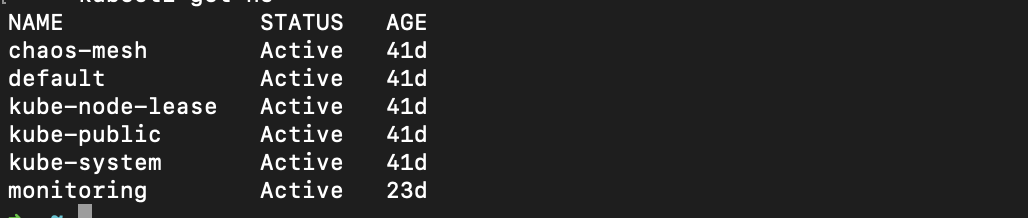
Step 3: We need to install chaos mesh on your environment based on container runtime.
to check the running container runtime, execute this command, this command will show which runtime container used on your enviornment.
kubectl get nodes -o wide

here we are using Docker container runtime. For that use following installation command
helm install chaos-mesh chaos-mesh/chaos-mesh -n chaos-mesh --version 2.5.1
If you have a Containerd then Helm Install with :
helm install chaos-mesh chaos-mesh/chaos-mesh -n chaos-mesh --set chaosDaemon.runtime=containerd --set chaosDaemon.socketPath=/run/containerd/containerd.sock --version 2.5.1
For CRI-O Helm Install with :
helm install chaos-mesh chaos-mesh/chaos-mesh -n=chaos-mesh --set chaosDaemon.runtime=crio --set chaosDaemon.socketPath=/var/run/crio/crio.sock --version 2.5.1
Step 4: verify chaos mesh installed by listing the pods in the namespace.
kubectl get po -n chaos-mesh
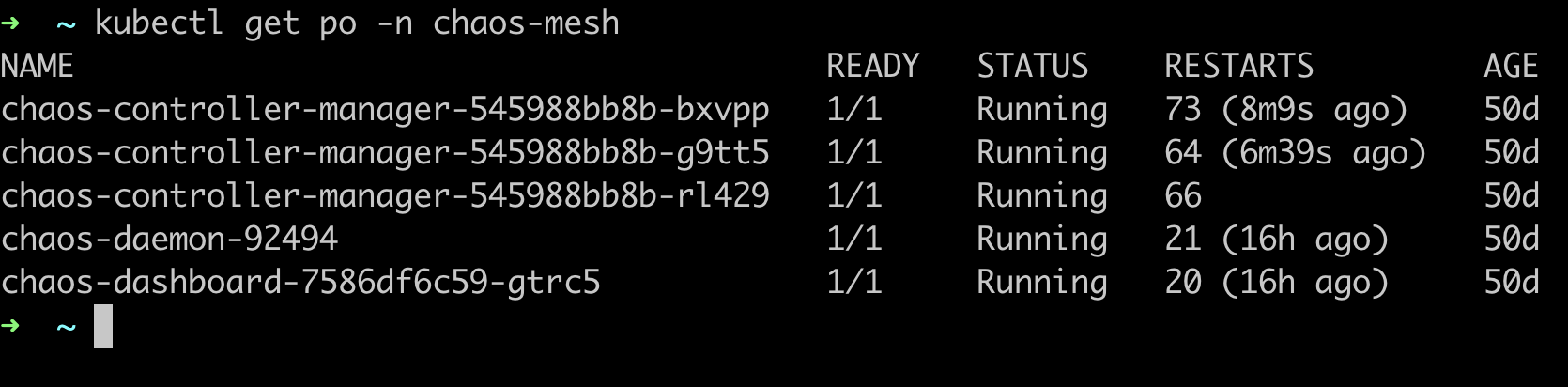
If you deployed locally (Minikube, microk8s, etc ) then port forward the pod to access the dashboard
kubectl port-forward chaos-dashboard-7586df6c59-gtrc5 2333:2333 -n chaos-mesh
access the dashboard at localhost:2333
Step 5: Create a login token to access chaos mesh.
if your using k8s 1.24+ then create a service account manually using following YAML.
kind: ServiceAccount
apiVersion: v1
metadata:
  namespace: default
  name: account-cluster-viewer-hjhty
---
kind: ClusterRole
apiVersion: rbac.authorization.k8s.io/v1
metadata:
  name: role-cluster-viewer-hjhty
rules:
- apiGroups: [""]
  resources: ["pods", "namespaces"]
  verbs: ["get", "watch", "list"]
- apiGroups: ["chaos-mesh.org"]
  resources: [ "*" ]
  verbs: ["get", "list", "watch"]
---
apiVersion: rbac.authorization.k8s.io/v1
kind: ClusterRoleBinding
metadata:
  name: bind-cluster-viewer-hjhty
subjects:
- kind: ServiceAccount
  name: account-cluster-viewer-hjhty
  namespace: default
roleRef:
  kind: ClusterRole
  name: role-cluster-viewer-hjhty
  apiGroup: rbac.authorization.k8s.io
save above YAML as chaos-service.yaml and apply
kubectl apply -f chaos-service.yaml -n chaos-mesh
check serviceaccount created successfully by listing it
kubectl get serviceaccount
copy serviceaccount name and run the following command
kubectl create token account-cluster-manager-hjhty
if you use running an older k8s version, the token already created get token by
kubectl describe secrets account-cluster-manager-hjhty
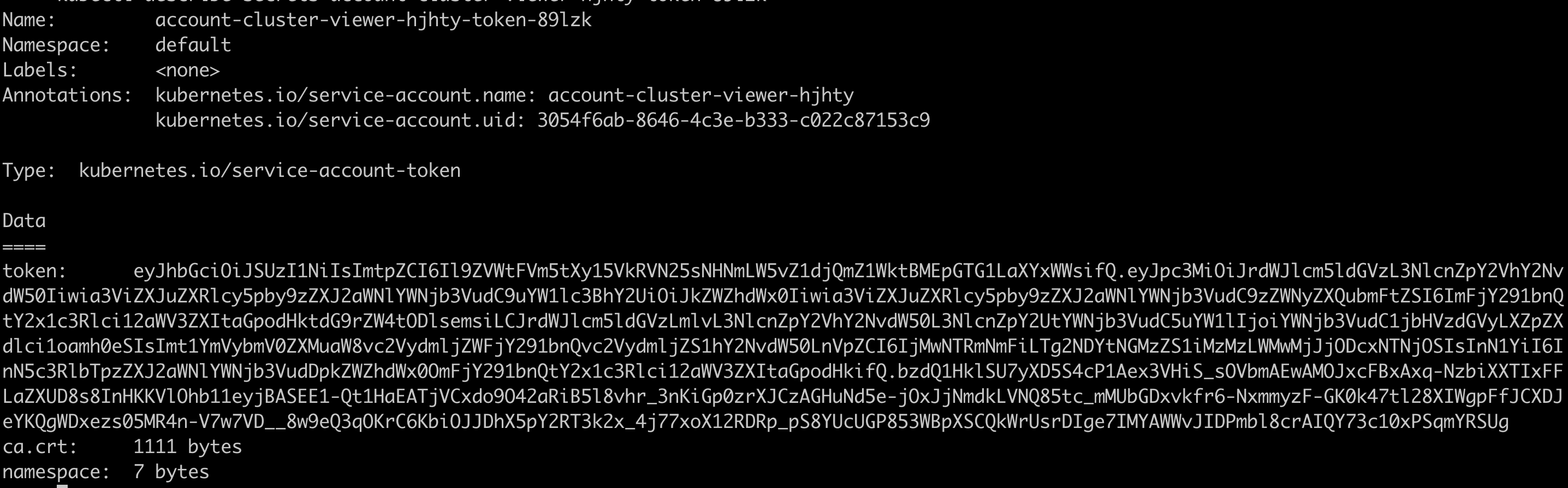
Use this token for login to chaos mesh. After login to chaos mesh you will get a dashboard like this.
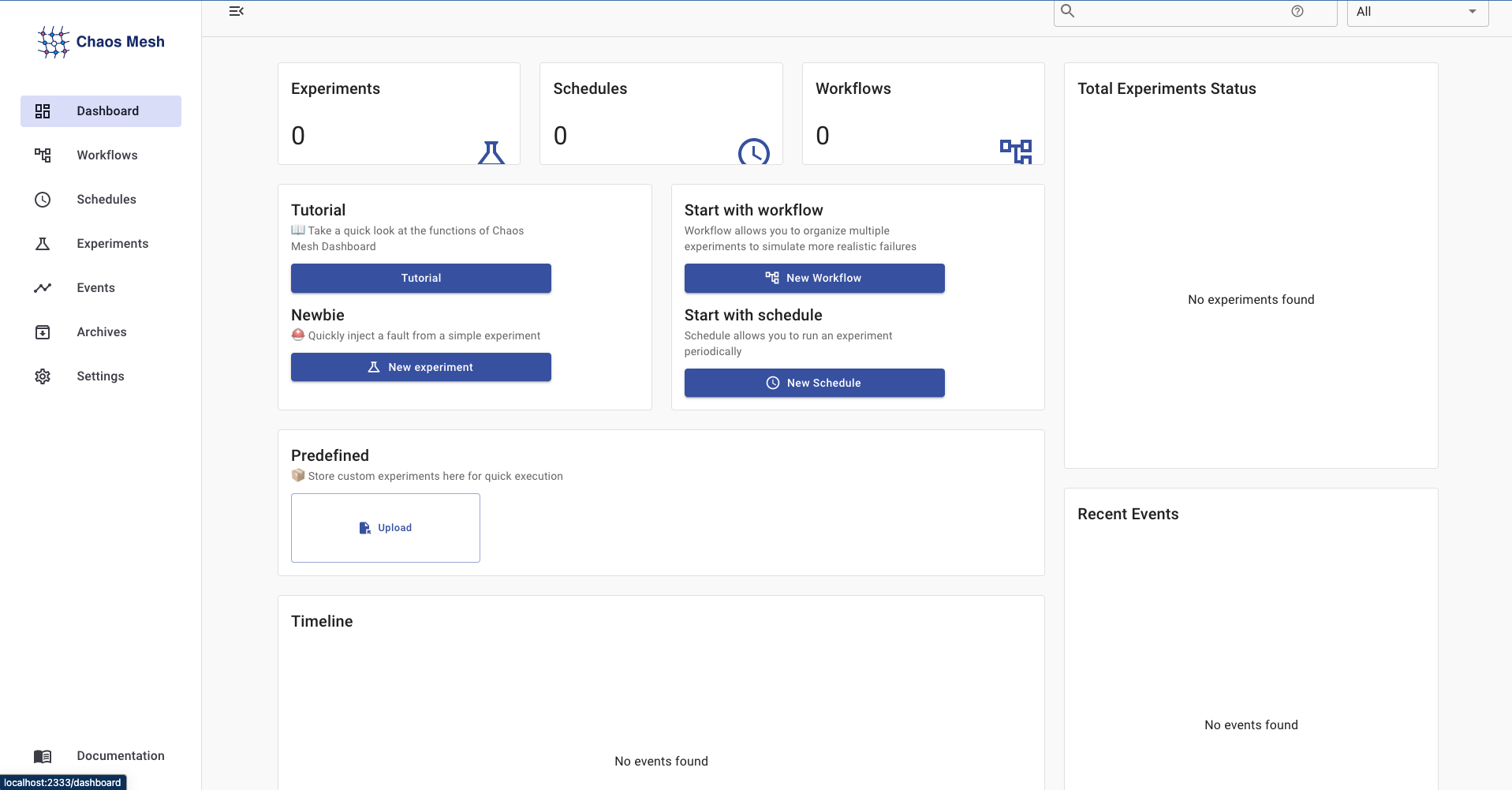
Now chaos mech is installed and ready, you can run chaos on your cluster now. There are lots of experiments available in chaos mesh like Pod Faults, Networks Faults, and Stress Scenarios will have this covered in next part.